Salesforce Packaging(1GP & 2GP)
What is Packaging in Salesforce?
- Package is nothing but an individual functionality which will provide one Solution for your any business need.
- The benefit of packaging is that if the client wants a similar business use case, they can save the complete development time and cost. They can install any prebuilt package for the same and kaboom! Problem solved.
- Also, since the code has already passed the Salesforce security review, we can trust that package for security perspectives and it will not break in production.
- We only have to install the application in the Salesforce environment.
- The purpose of a managed package is to distribute an application to other Salesforce orgs.
Type of Packaging?
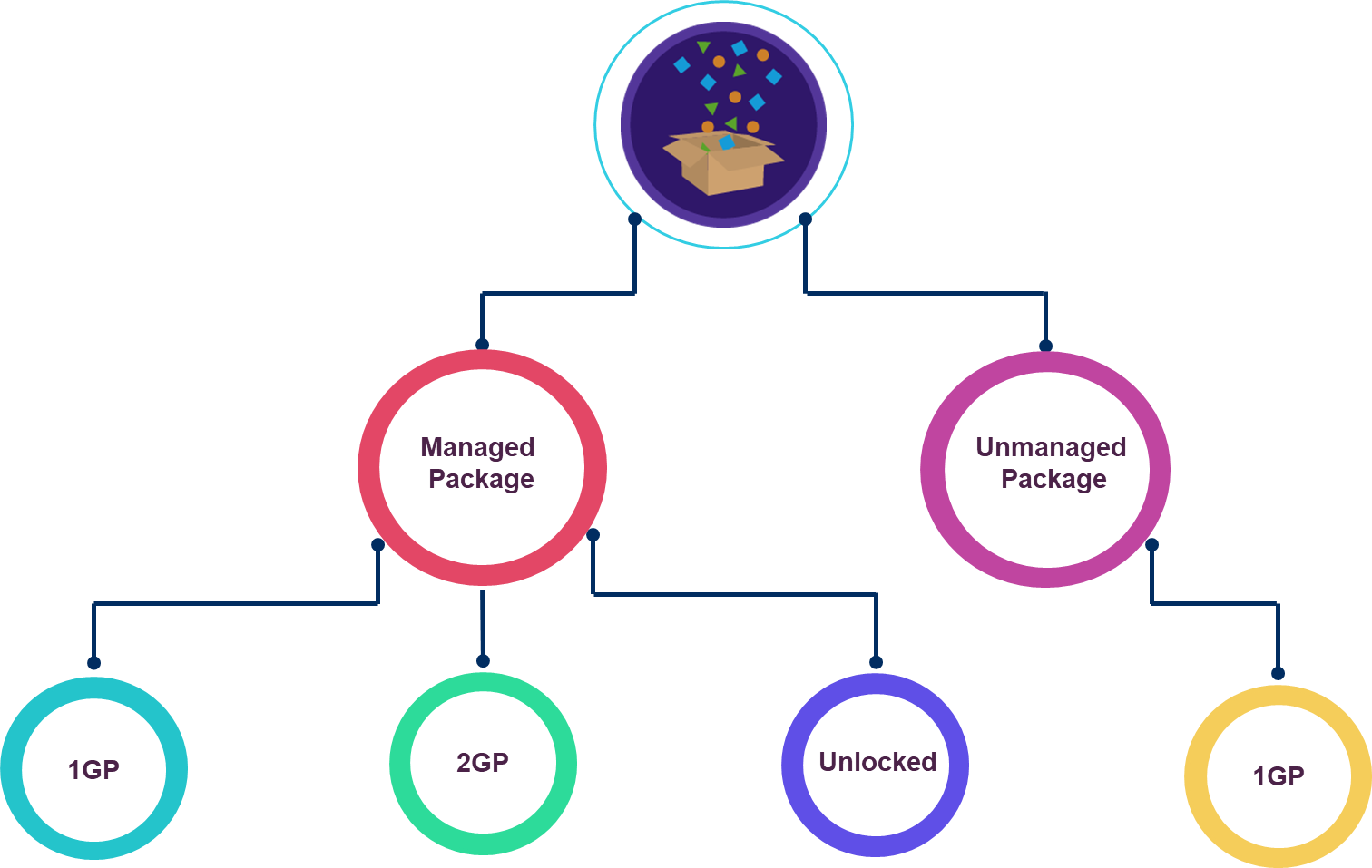
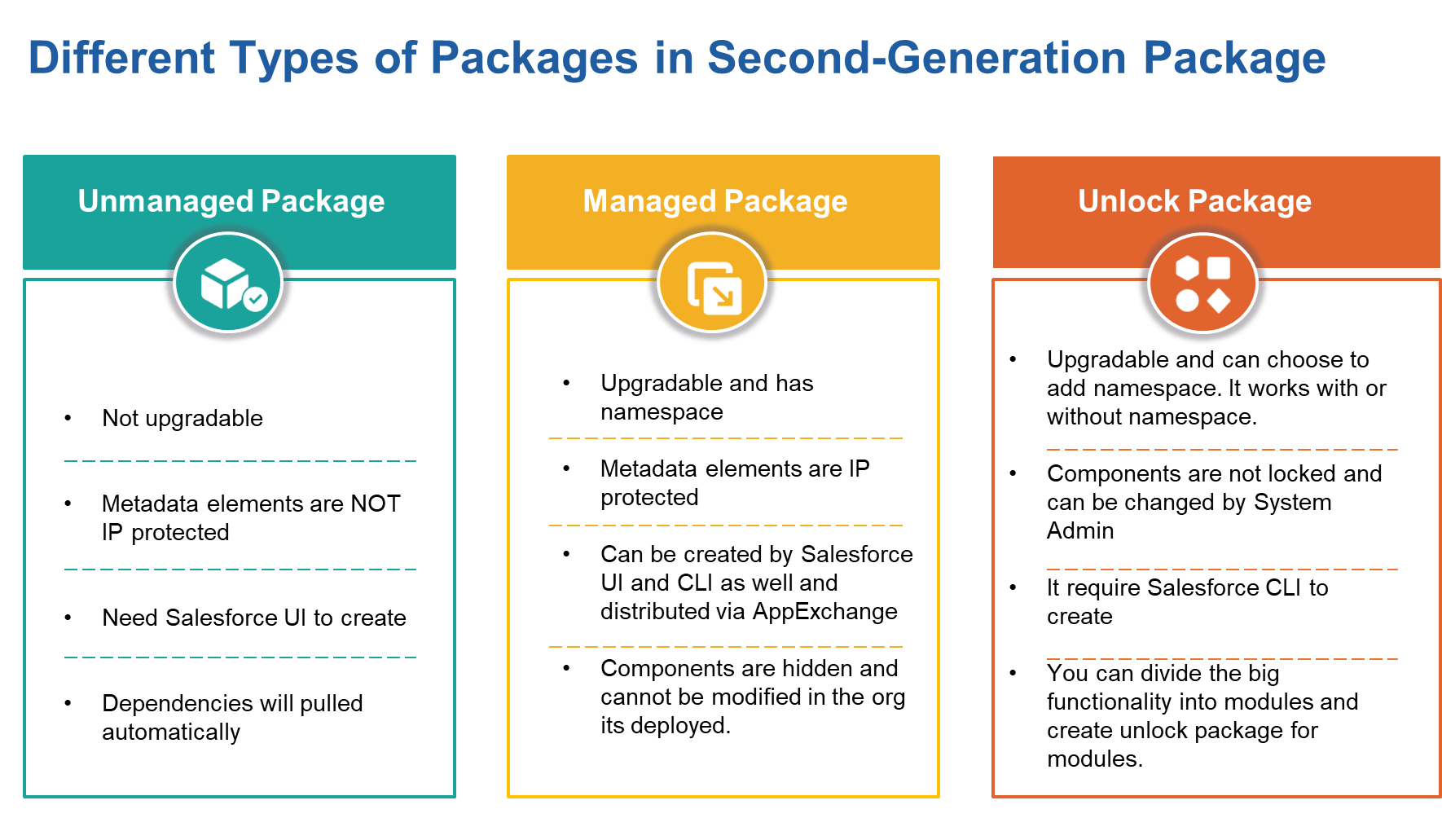
Unmanaged Package
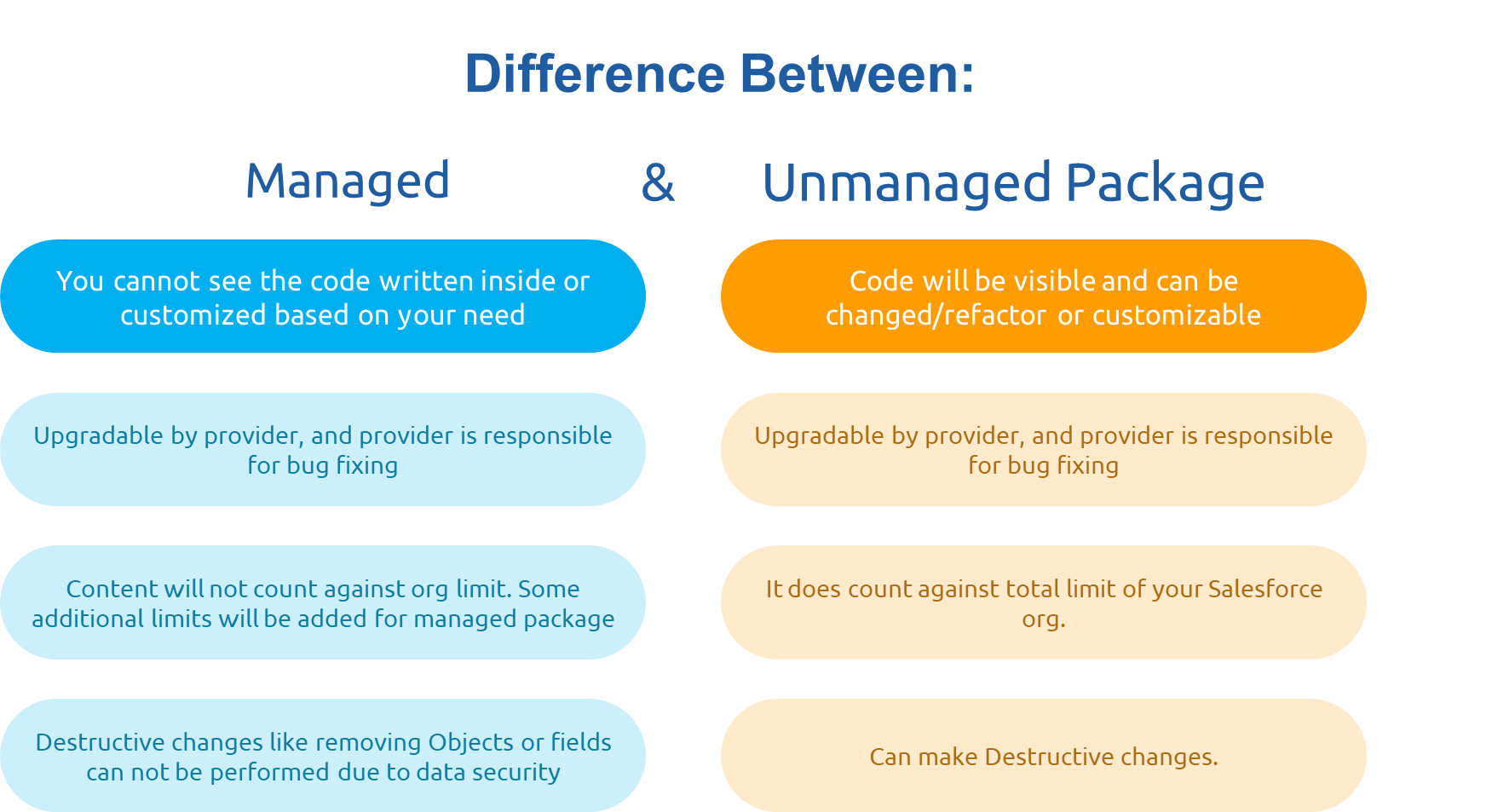
- Unmanaged packages can be used for distributing open-source projects to developers, or as a one-time drop of applications that require customization after installation.
- If a naming conflict occurs, the install is blocked.
- The code will be visible and can be updated as well after being installed in the Org.

Managed Package
- Managed packages are used by Salesforce partners to distribute and sell applications to customers.
- A namespace identifier is required to distinguish your package and its contents from packages of other developers on AppExchange.
- The code is not visible and cannot be updated after it is installed in the Org.
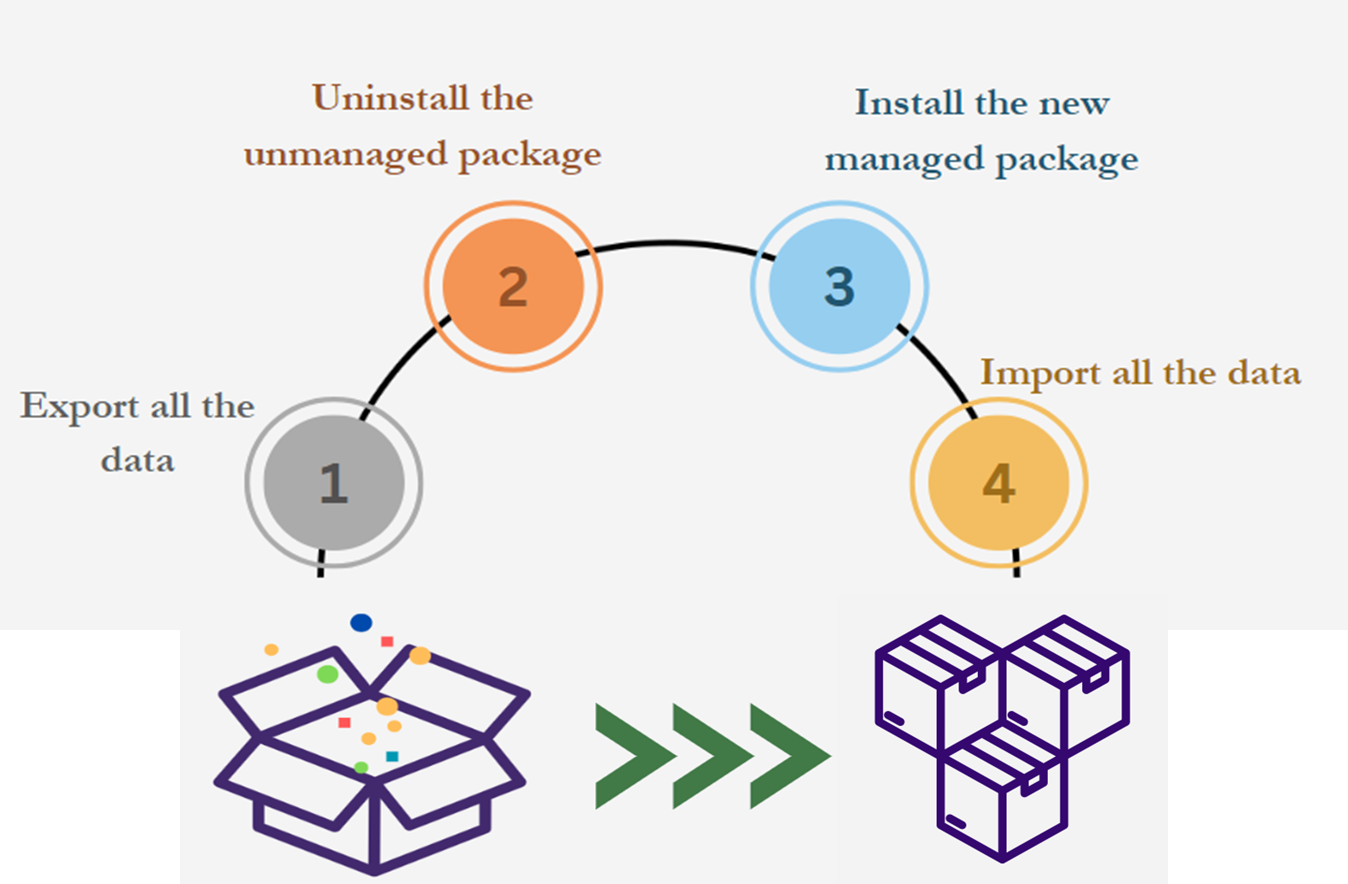
Converting Unmanaged to Managed Package
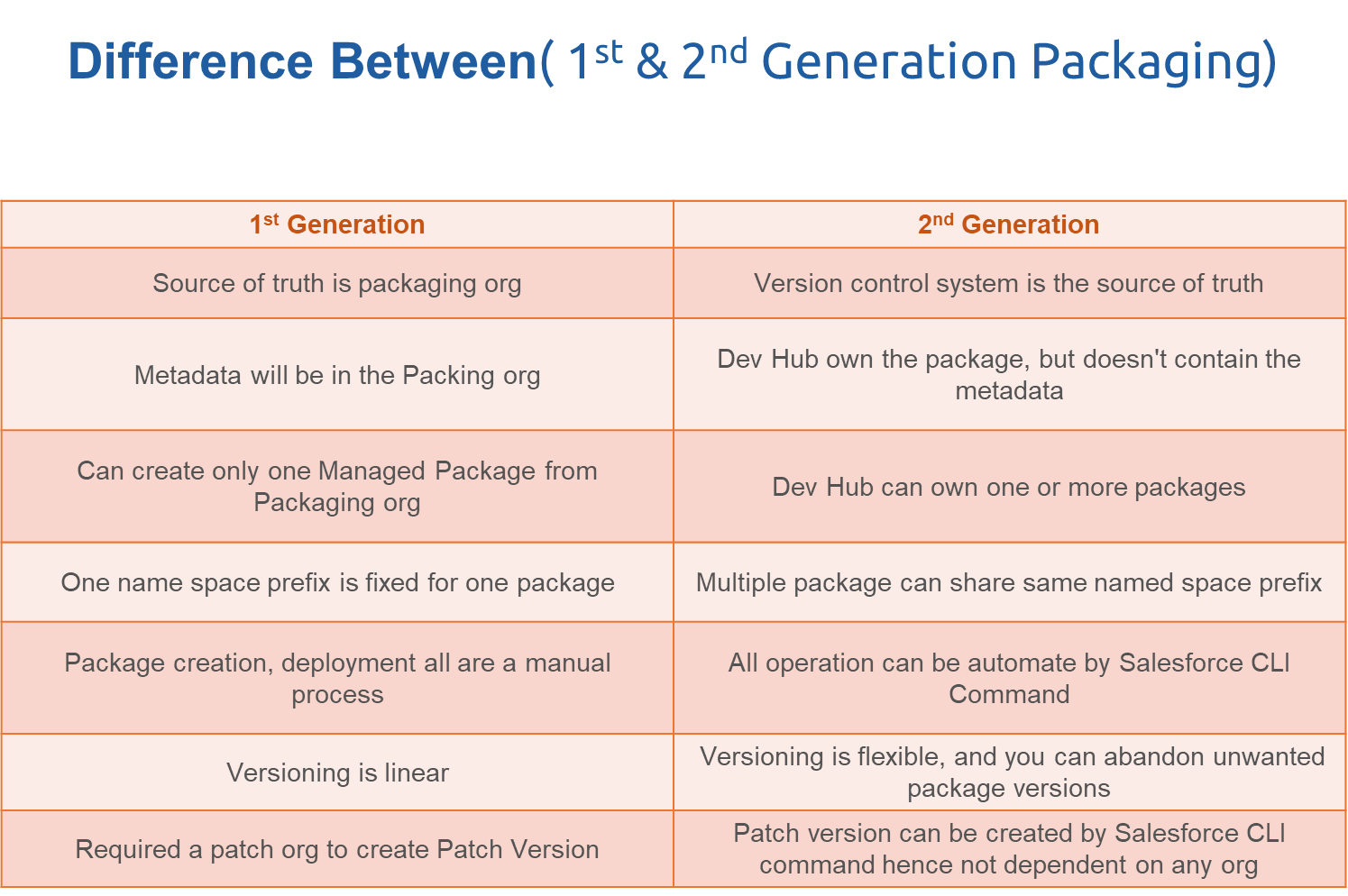
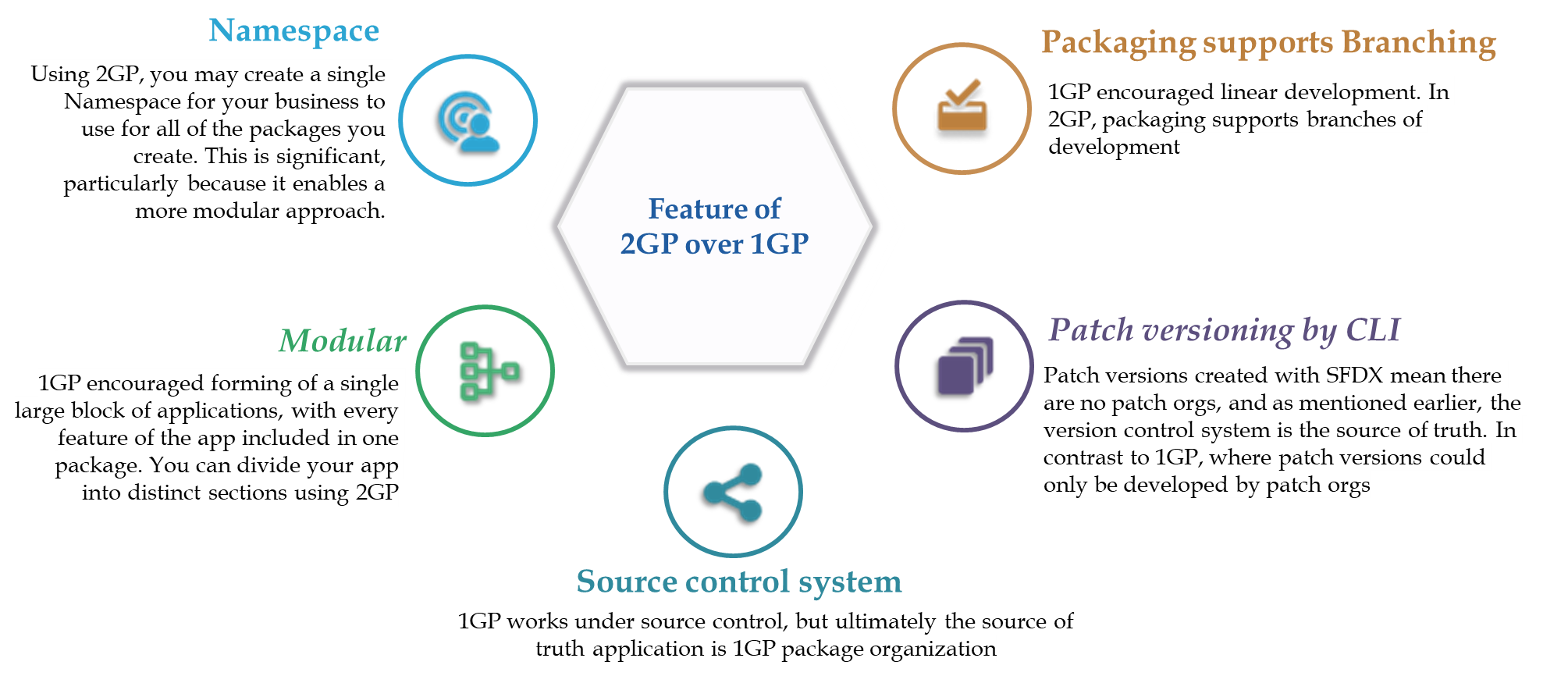
- Managed packages are used by Salesforce partners to distribute and sell applications to customers.
- A namespace identifier is required to distinguish your package and its contents from packages of other developers on AppExchange.
- The code is not visible and cannot be updated after it is installed in the Org.
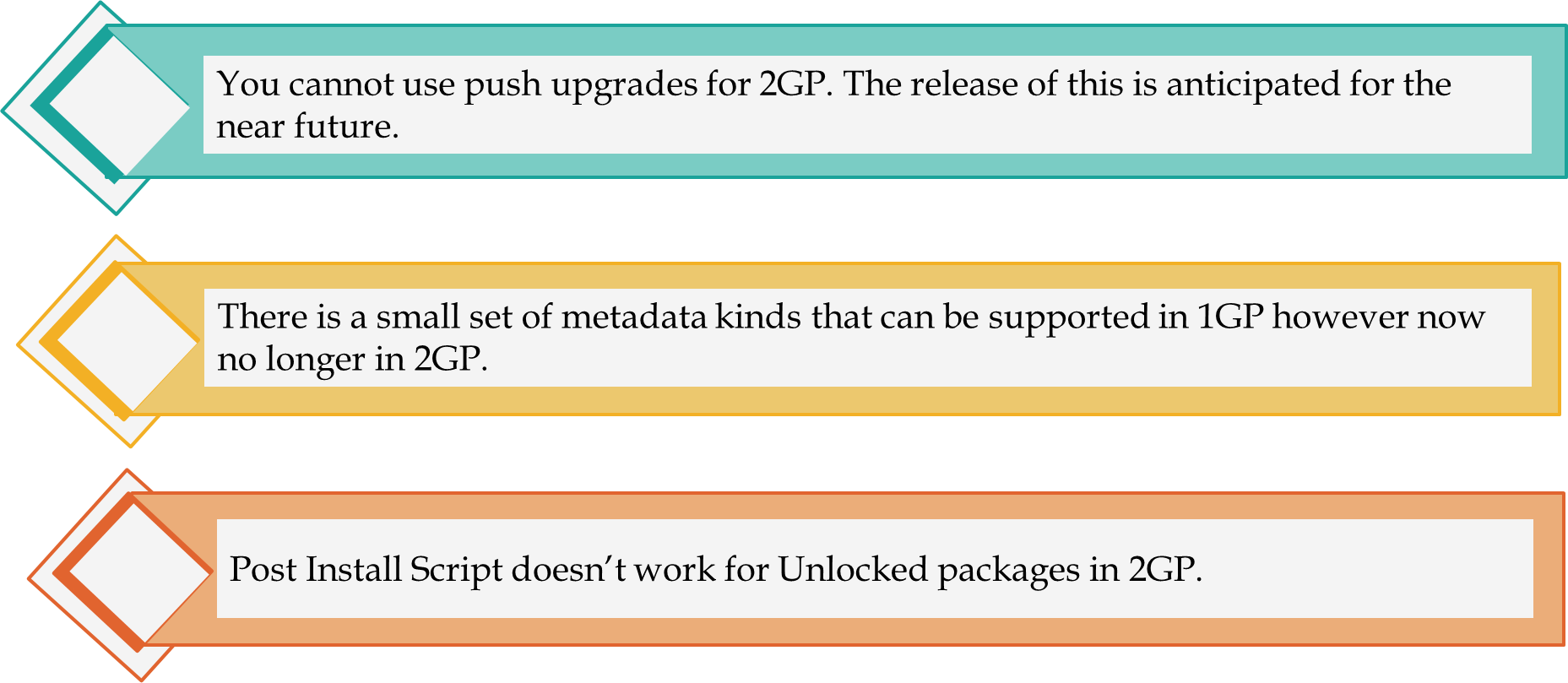
Before You create 2GP Managed Package
- Enable DevHub
- Enable Second-Generation Managed Packaging
- Install Salesforce CLI
- Create and Register your Namespace
Enable DevHub
- Log in as System Administrator to your Developer Edition, trial, or production org (for customers), or your business org (for ISVs).
- From Setup, enter Dev Hub in the Quick Find box and select Dev Hub
- If you don't see Dev Hub in the Setup menu, make sure that your org is one of the supported editions.
- To enable Dev Hub, click Enable
- After you enable Dev Hub, you can’t disable it.
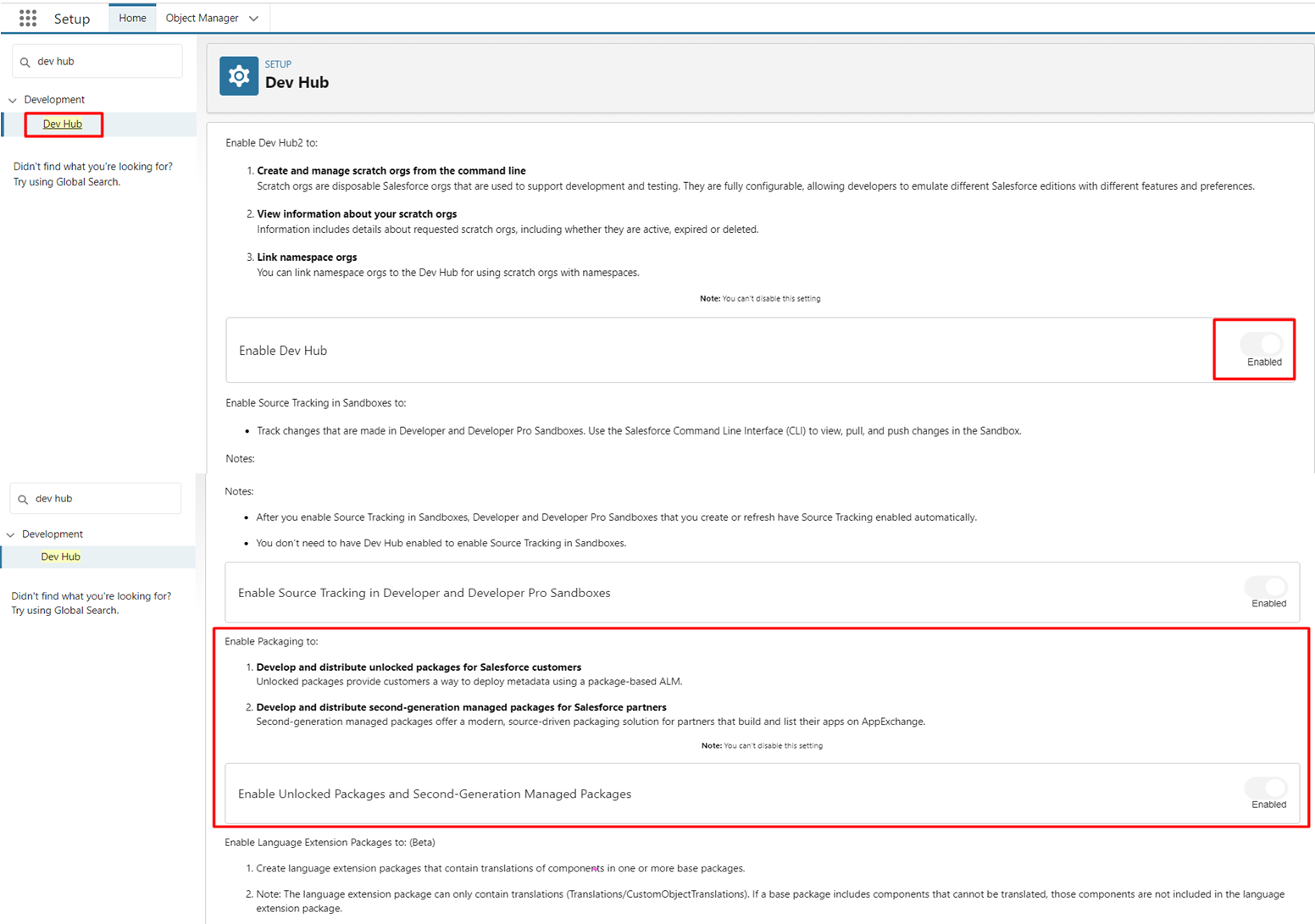
Enable DevHub
- We all are using CLI in everyday life, but if you are still using SFDX (v7) then upgrade to new version and its time to move to V2
- Move from sfdx (v7) to sf (v2)
Create and Register Namespace
To create a namespace:
- Sign up for a new Developer Edition org.
- In Setup, enter Package Manager in the Quick Find box, and select Package Manager.
- In Namespace Settings, click Edit.
- Enter a namespace and select Check Availability.
- (Optional) Select a package to associate with this namespace, or select None, then click Review.
- Review your selections, and then click Save.
To register a namespace:
- To link the namespace that you created with your Dev Hub, use Namespace Registry.
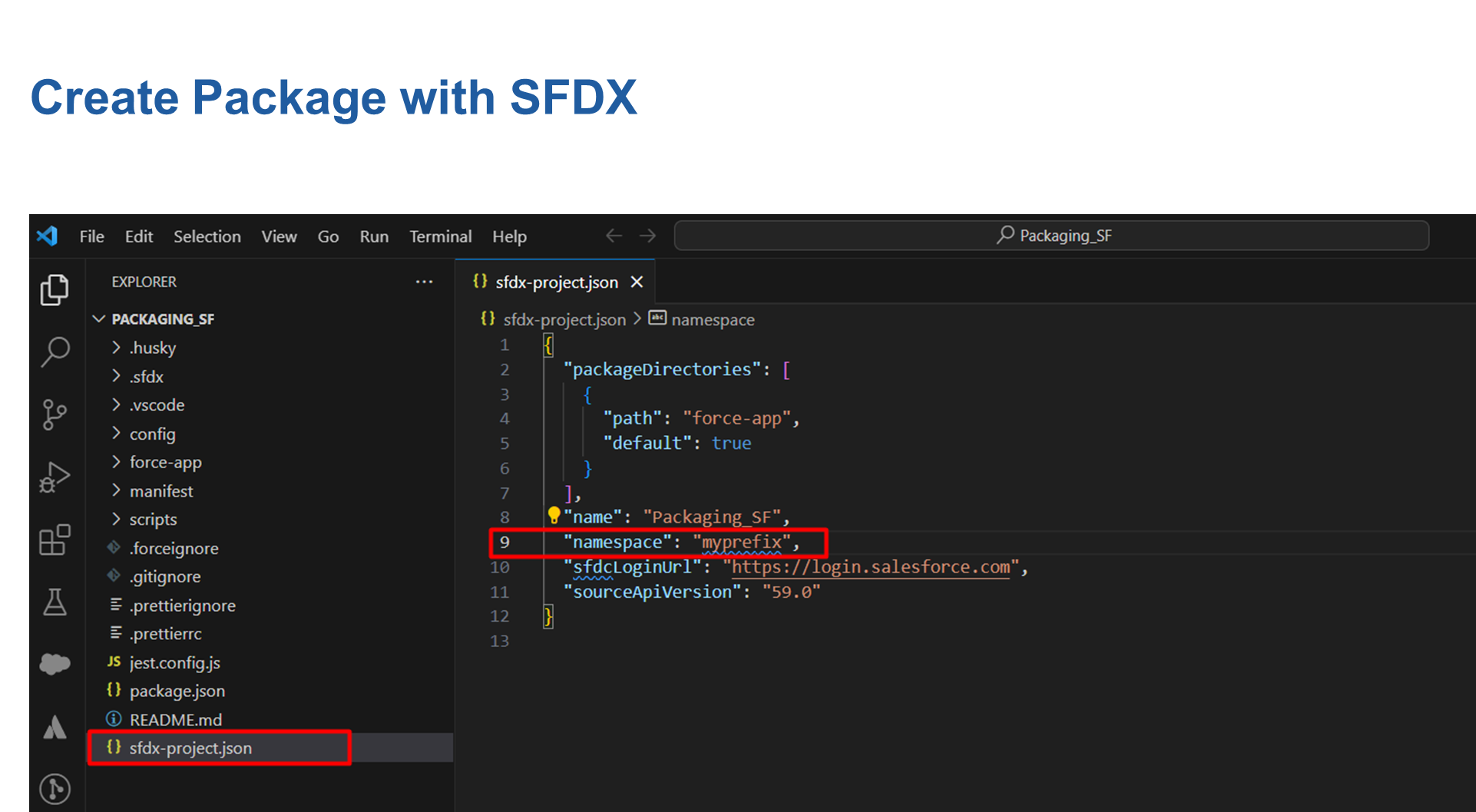
- In the sfdx-project.json file, specify your namespace using the namespace attribute. When you create a new 2GP package, the package is associated with the namespace specified in the sfdx-project.json file.
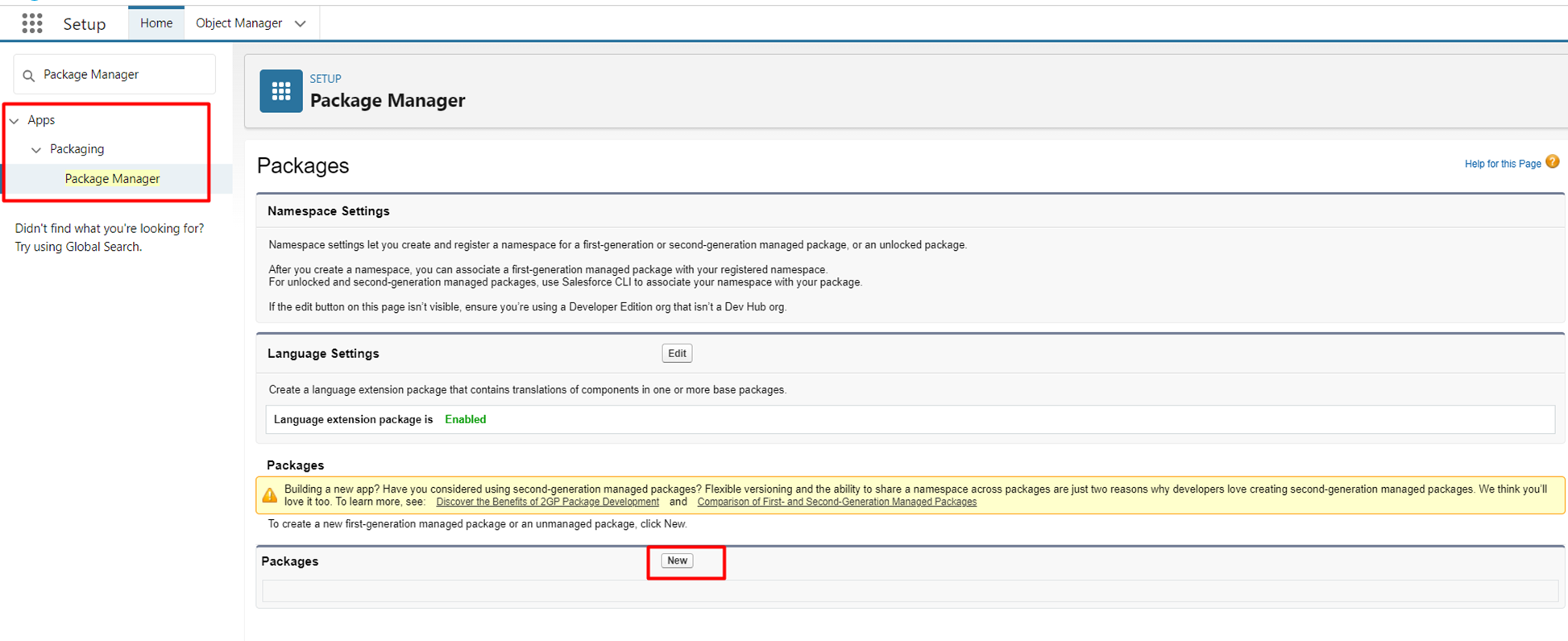
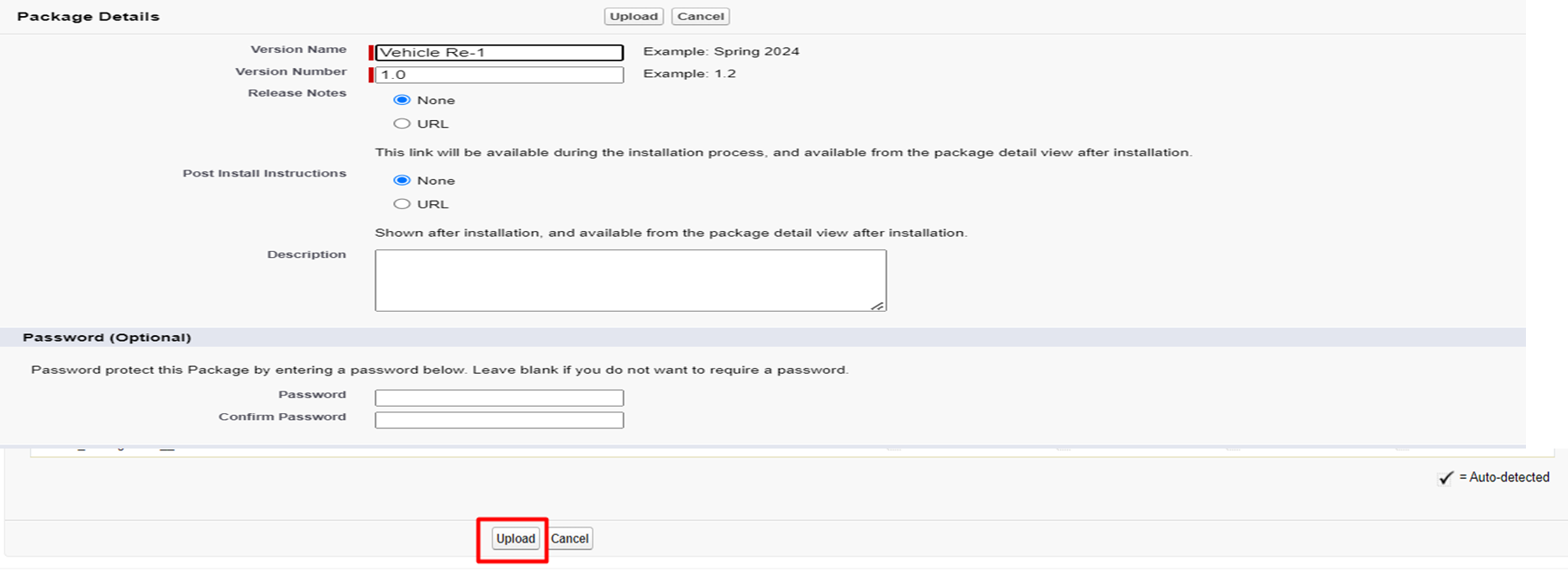
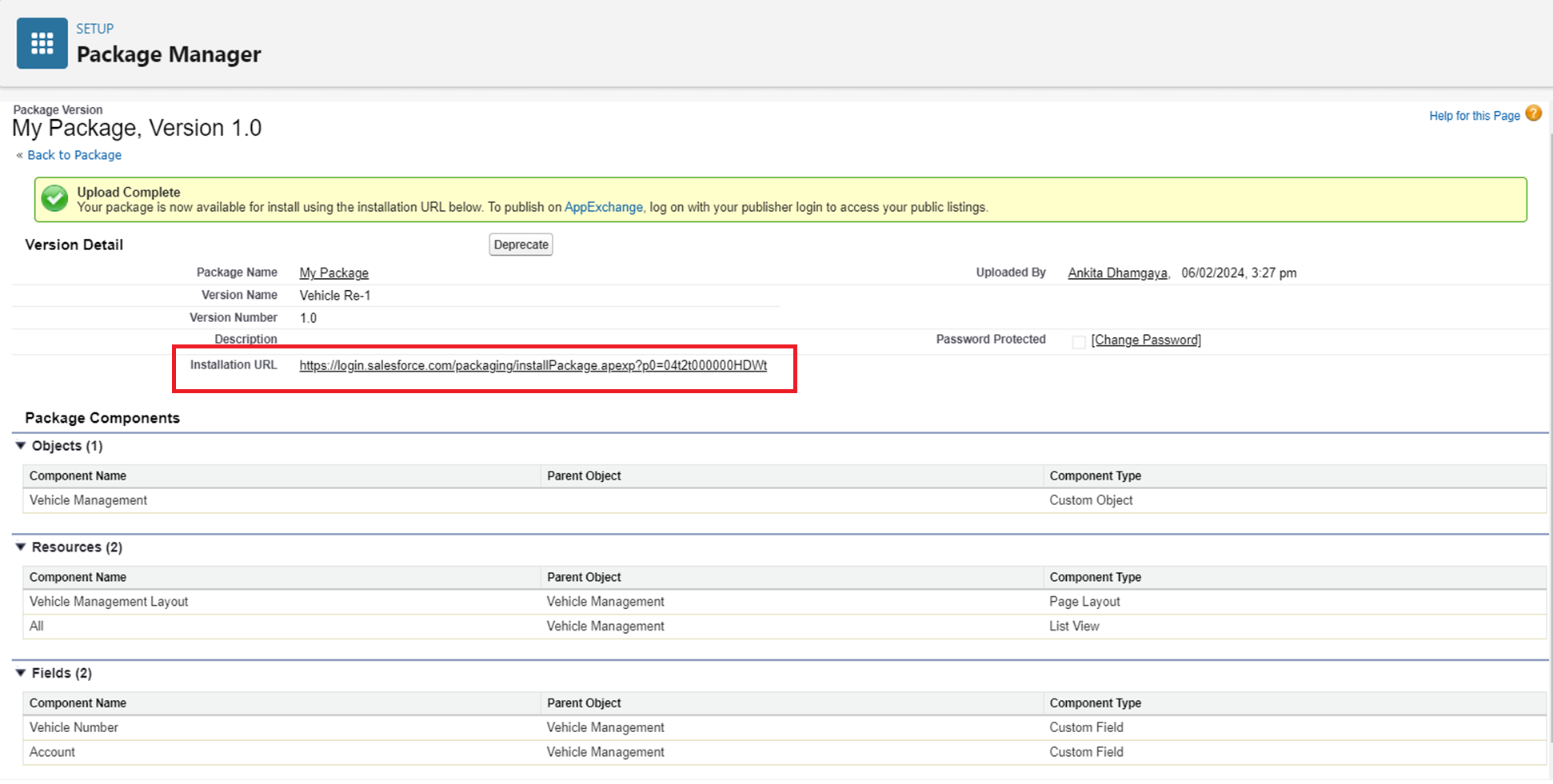
Create Package Manually:
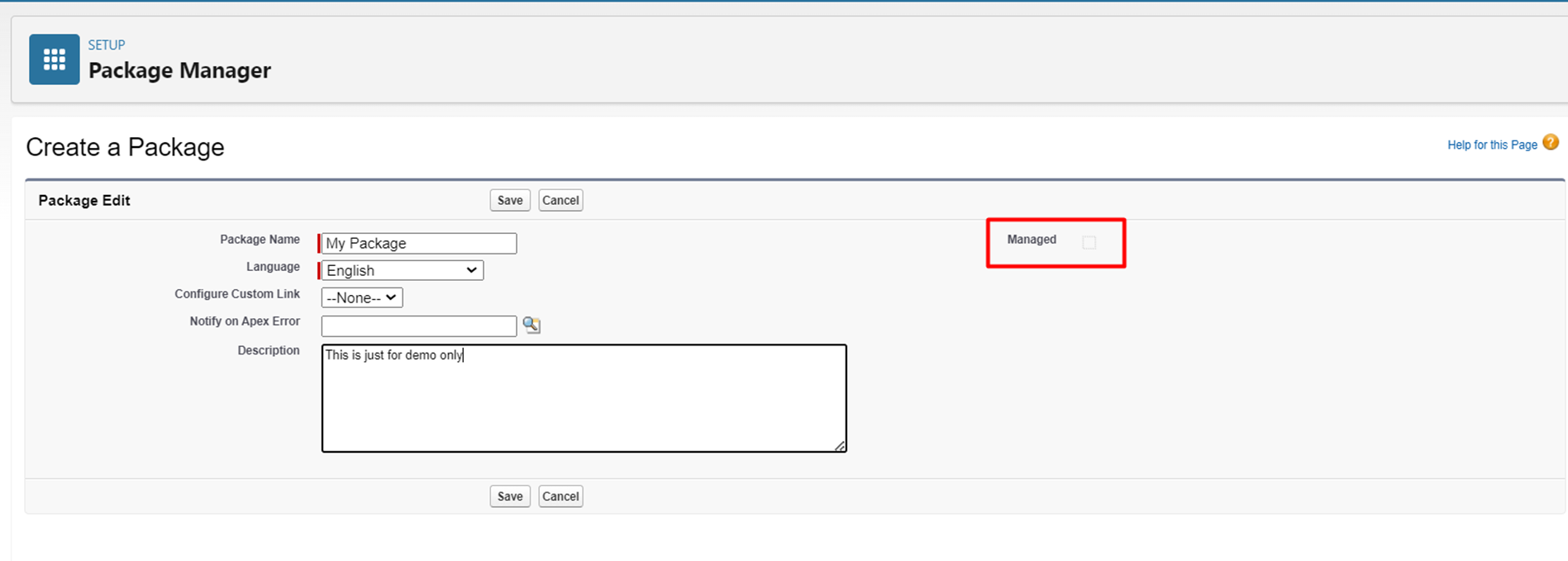
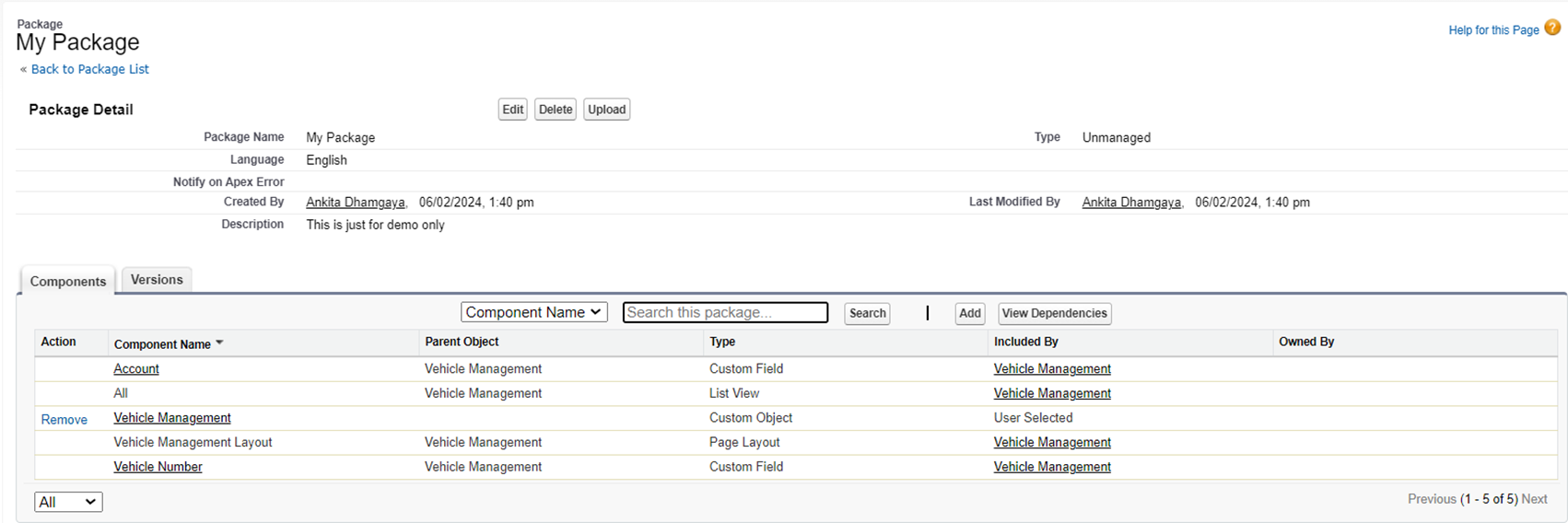
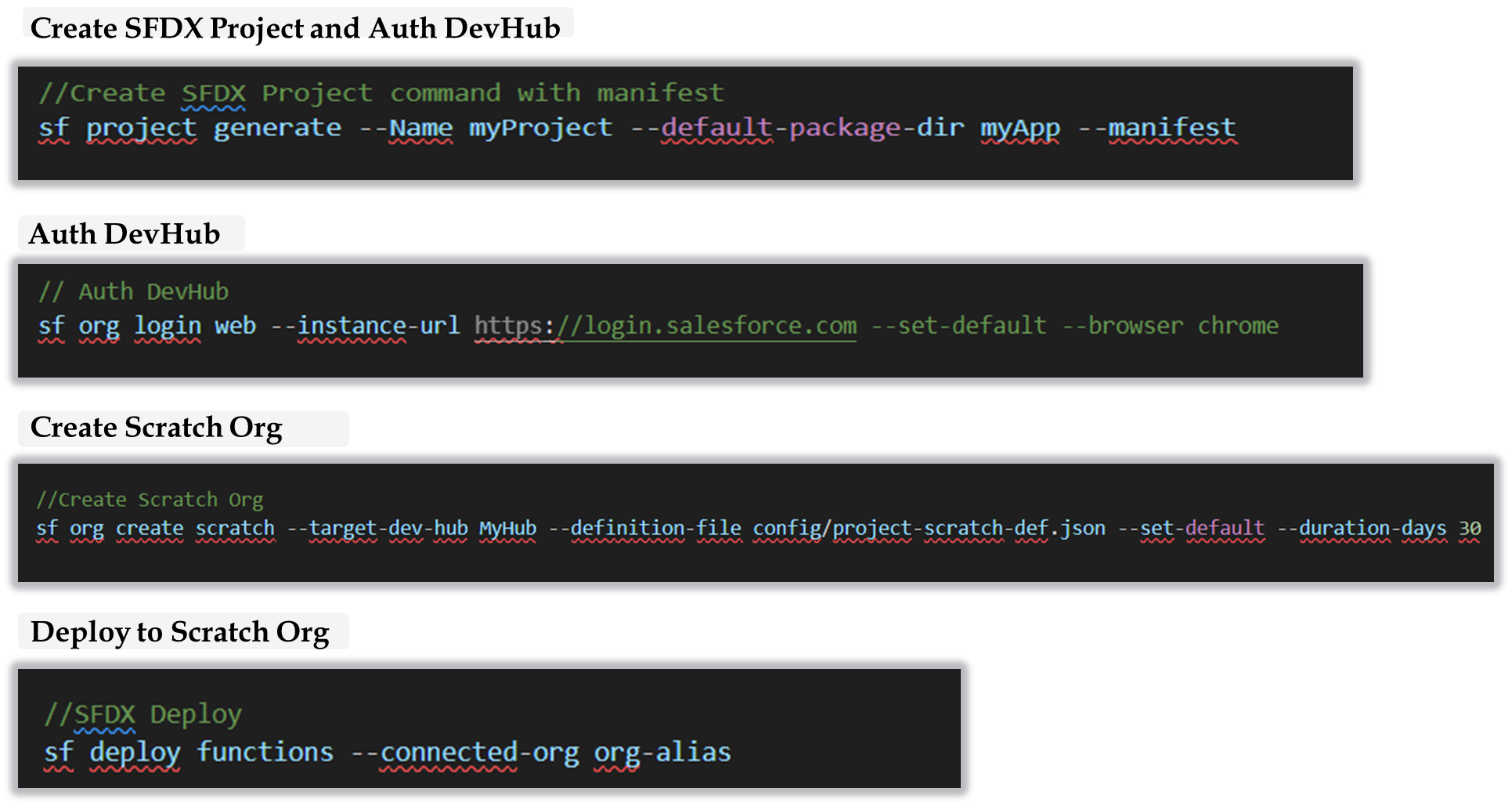
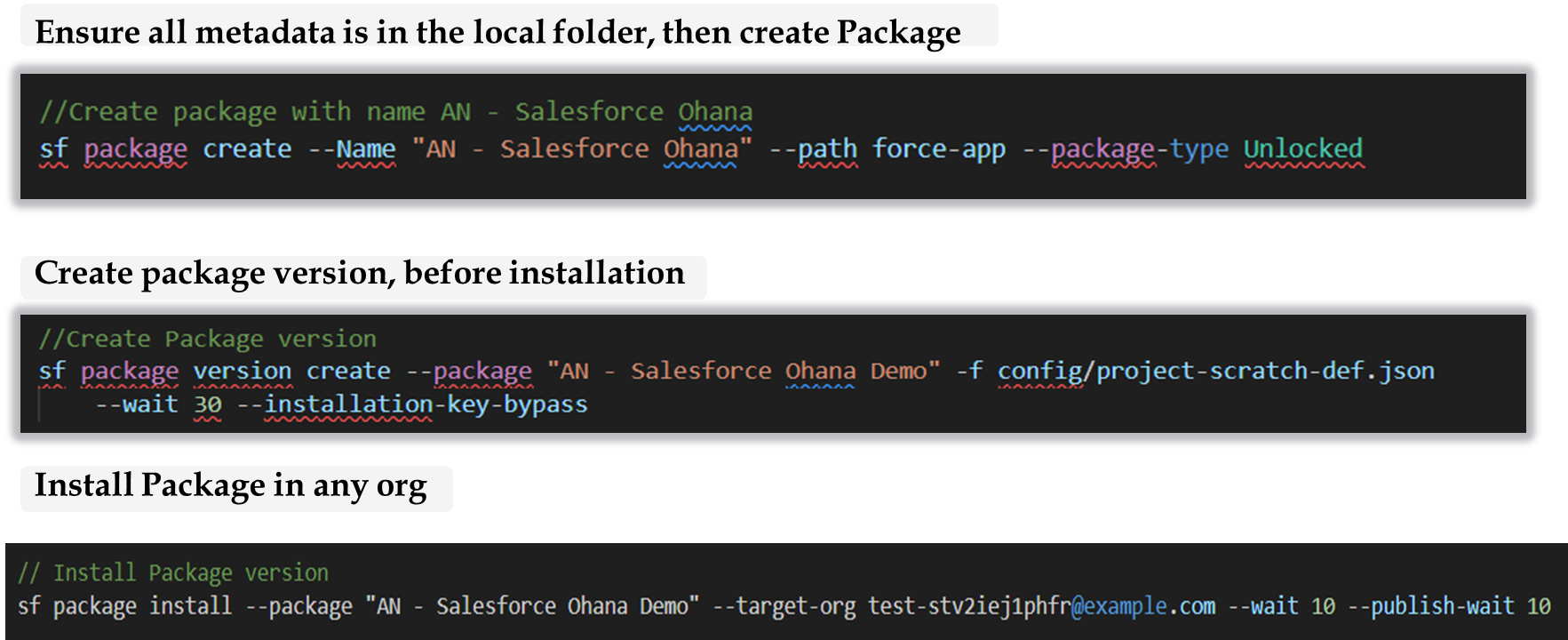
DEMO
References
- https://developer.salesforce.com/docs/atlas.en-us.sfdx_dev.meta/sfdx_dev/sfdx_dev_unlocked_pkg_workflow.htm
- https://developer.salesforce.com/docs/atlas.en-us.sfdx_cli_reference.meta/sfdx_cli_reference/cli_reference_org_commands_unified.htm#cli_reference_org_generate_password_unified
- https://developer.salesforce.com/docs/atlas.en-us.sfdx_dev.meta/sfdx_dev/sfdx_dev_unlocked_pkg_intro.htm